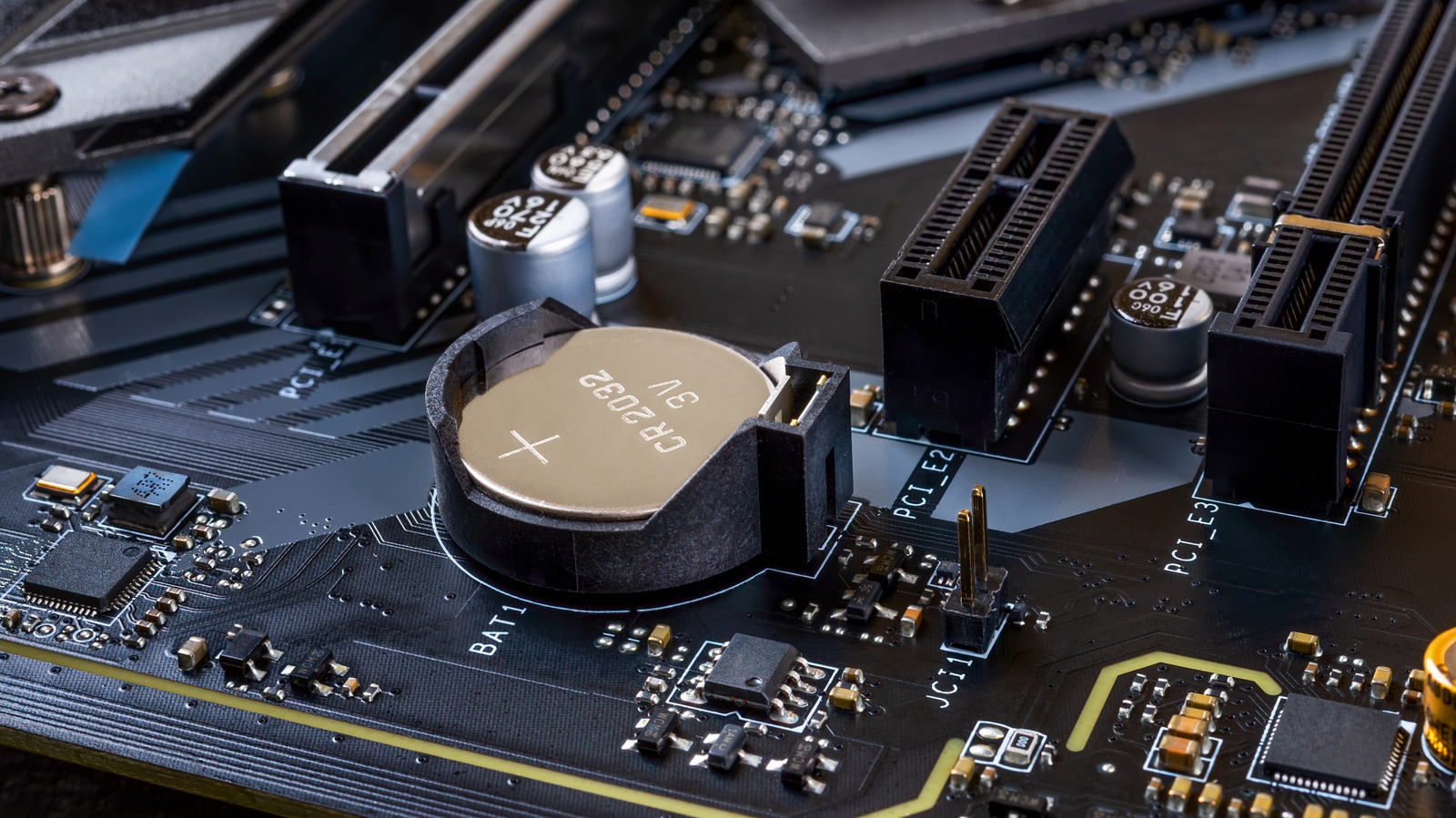
The CMOS battery isn't something you'll need to change often. But when it goes, it's time for a quick swap.
News Computing What happens when your PC’s CMOS battery dies? You might not even have known about this little battery, but you’ll notice the effects when it stops working. By Calvin Wankhede Oct. 26, 2026 8:15 am EST Maryia_K/Shutterstock Add Engadget on Google: Preferred Source Google Discover Look closely at a desktop computer’s motherboard, and you’ll notice a small disc-shaped battery that was installed from the factory. This coin-sized battery powers your computer’s real-time clock and helps preserve basic hardware-related settings when the machine is turned off. Like any cell, the CMOS (complementary metal-oxide-semiconductor) battery has a limited lifespan and eventually requires replacement. The good news is that the process is fairly easy and inexpensive. In most cases, you can go many years without needing to replace a CMOS battery since they only drain when your PC isn’t connected to power. What does a CMOS battery do and why do computers need it? You can think of a CMOS battery as a backup power supply for a computer’s motherboard, allowing it to keep track of the date and time even when it’s unplugged. Motherboards also store boot-related BIOS or UEFI settings on a small memory chip that receives power from the CMOS battery. Most desktop computers use a standard CR2032 coin cell, which is the same kind that powers Apple’s AirTags. Some may use a CR2025 coin, but this is less common. Since the battery only needs to power a real-time clock and memory chip, it can usually last several years, or even up to a decade. A telltale sign of the CMOS battery failing is if your computer can no longer accurately keep track of the time and date between power cycles, especially after unplugging it from the wall. It may reset to a default value (like January 1, 2000 or January 1, 1970) on every boot. An incorrect date-time combination can result in websites not loading, as modern HTTPS connections rely on security certificates with narrow validity periods. This will also add confusion from inaccurate “last updated” dates on your own files. That said, many modern operating systems now fetch the correct date and time from an online server upon boot, so you may not notice a failing CMOS battery until it’s completely dead. When that happens, your computer’s BIOS or UEFI will throw up a warning on boot and revert to its factory settings every time it starts up. That means system-level options like the boot order and fan configurations are set to default every time. You can ignore this temporarily, as it doesn’t affect your apps or files. But replacing the battery is inexpensive and straightforward. To preserve your motherboard’s settings between sessions with a dead battery, use sleep mode instead of rebooting your computer , and avoid unplugging it from the wall. Many laptops use their main battery instead of a dedicated CMOS cell to maintain the internal clock, so you’re much more likely to run into this problem on a desktop PC. That’s a benefit since most modern laptops don’t offer easily user-replaceable components anyway. How to replace your PC’s CMOS battery BLKstudio/Shutterstock If you suspect your CMOS battery needs a replacement, all you need is a new coin cell battery and a few minutes. Most computer cases are toolless these days, so you likely won’t need a screwdriver. However, I keep a flathead screwdriver on hand for the task as it makes prying the existing coin cell battery out of the motherboard easier. To find out which battery you need, power off your PC, take the side panel off your computer case and locate the CMOS battery on your motherboard. You’re looking for a silver-colored coin-shaped cell. If you have a graphics card or other bulky hardware installed, you may have to temporarily remove that from your case if the battery is located behind it. The CMOS battery is typically held down by a clip or latch. This is where you can use a flathead screwdriver or any flat object to gently release it and dislodge the cell. Install the new battery, put the side panel back on and you’re done. If you have a mini PC or a non-standard motherboard, I recommend reading your computer’s manual before starting the process. With the CMOS battery replaced, don’t forget to enter your computer’s BIOS or UEFI settings and adjust settings to the way you had them before. An important one for gamers or anyone using heavy software is re-enabling Intel XMP or AMD EXPO to ensure your RAM performs as well as it should. Likewise, you may want to tweak your motherboard’s built-in CPU overclocking features , although be warned that increased performance comes at the expense of added power draw and heat.